What is Image Metadata?
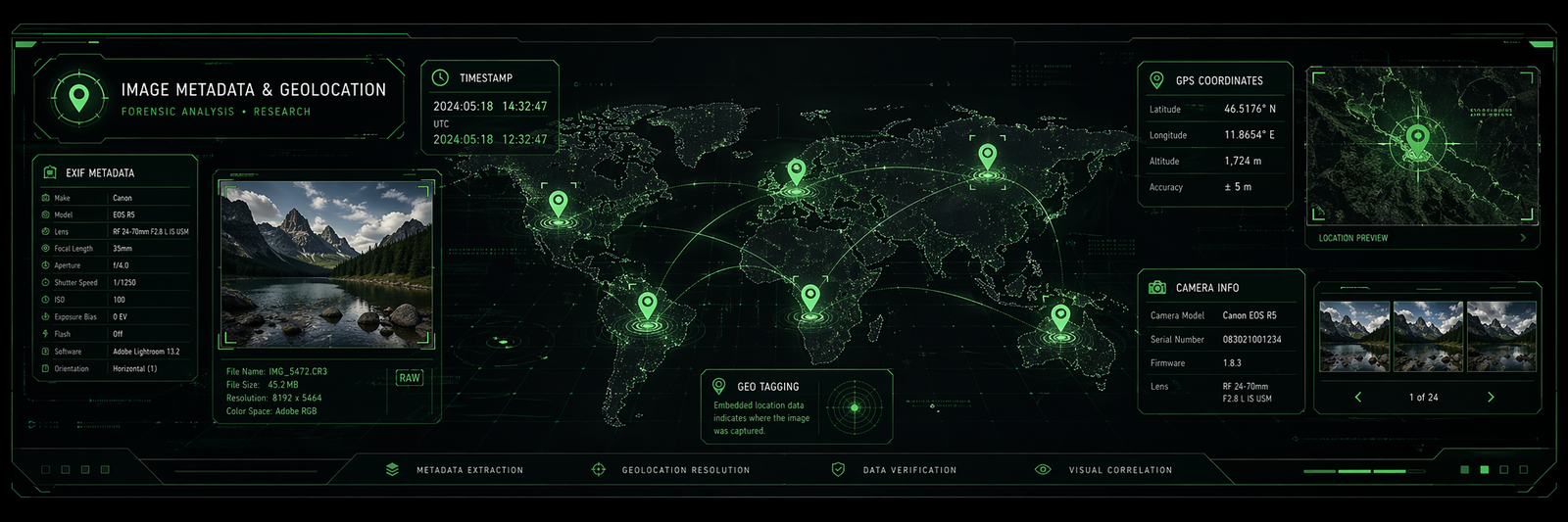
Image metadata is embedded information stored inside an image file alongside the pixel data itself. This data is written at capture time by the camera or device, and can be extended later by editing software, photo management tools, or publishing systems. The three primary standards — EXIF, IPTC, and XMP — each serve a different purpose and are often all present in the same file simultaneously.
EXIF (Exchangeable Image File Format) is a binary format embedded in the JPEG or TIFF header at capture time. It answers "how and when was this taken?" — camera model, lens, shutter speed, aperture, ISO, GPS coordinates, and timestamps. IPTC answers "what is this a photo of and who owns it?" — captions, keywords, copyright, and location names. XMP is Adobe's XML-based format that answers "what has been done to this file?" — edit history, star ratings, colour labels, and Lightroom adjustments. Understanding which standard holds which data is essential before using any metadata extraction tool.
Beyond these three, every image file carries an ICC color profile block describing how its colors should be displayed, and most JPEGs contain an embedded thumbnail — a complete tiny JPEG stored inside the file that your OS file browser shows before decoding the full image. File-level metadata (size, format, filesystem timestamps) rounds out the picture, though it's the least reliable layer. For most practical purposes, EXIF + GPS + IPTC covers the vast majority of real-world use cases.
GPS & Geolocation Fields
GPS metadata is stored inside EXIF within a dedicated GPS IFD (Image File Directory). The most critical fields are the four core ones — GPSLatitude, GPSLatitudeRef, GPSLongitude, and GPSLongitudeRef. Without all four together you cannot place the photo on a map. Coordinates are stored as rational numbers in DMS format (Degrees, Minutes, Seconds), which must be converted to decimal degrees for use with mapping APIs.
The DMS to decimal conversion formula is: decimal = degrees + (minutes / 60) + (seconds / 3600), then apply a negative value if the reference is S (South) or W (West). The raw values in the file look like rational fractions (25/1, 46/1, 3456/100) — your parser needs to evaluate those before applying the formula.
decimal = degrees + (minutes / 60) + (seconds / 3600)
// then apply negative if Ref is S or W
GPSImgDirection is more common than people expect — modern iPhones and Android phones write this consistently. It tells you which way the camera was pointing when the shot was taken, which is useful for mapping and augmented reality applications.
GPSDOP (Dilution of Precision) is useful if you need to assess GPS accuracy. A DOP under 2 is excellent, 2–5 is good, above 10 is poor. GPSProcessingMethod reveals how the location was determined — GPS means actual satellite fix, CELLID means cell tower triangulation, WLAN means Wi-Fi positioning. This matters a lot for accuracy — a cell tower fix could be off by a kilometre or more. The GPSStatus field indicates whether the measurement was active (A) or void/invalid (V) at capture time.
Camera & Technical Fields
EXIF camera fields record the full shooting context. For display purposes the most useful set is: Make, Model, LensModel, FNumber, ExposureTime, ISOSpeedRatings, FocalLengthIn35mmFilm, Flash, and ExposureProgram. Note that FocalLengthIn35mmFilm is more meaningful to most users than the raw FocalLength value, because it gives a universally understood equivalent regardless of sensor size — "24mm equivalent" means something; "6.77mm" does not.
FNumber vs ApertureValue — both describe the aperture, but FNumber is the one you actually display (e.g. f/1.8). ApertureValue is stored in APEX units (a logarithmic scale) and needs a formula to convert: f-number = √(2^ApertureValue). Always read FNumber for display purposes.
Flash is a bitmask, not a simple yes/no. Bit 0 tells you if it fired, bits 3–4 give the mode (auto, forced, suppressed), and bit 5 indicates red-eye reduction was on. Most parsers decode this into a human-readable string automatically.
CustomRendered is a useful signal for detecting computational photography — portrait mode, Night mode, and HDR all set this to 1. Worth surfacing in a guide about phone photo metadata.
MakerNote is a goldmine and a minefield. It's a private binary block that each manufacturer fills with their own fields — Apple stores things like burst photo index, lens correction data, and face detection results in there. Canon stores lens correction matrices. Libraries like exifr (JavaScript) and piexifjs can decode some vendor MakerNotes, but coverage varies.
The practical display set — if you're building a photo info panel, the fields your users will actually care about are: Make, Model, LensModel, FNumber, ExposureTime, ISOSpeedRatings, FocalLengthIn35mmFilm, Flash, and ExposureProgram. Everything else is for power users or specific use cases.
Technical Image Properties
Dimensions vs. resolution — PixelXDimension and PixelYDimension are the actual pixel count of the image. XResolution / YResolution are just a hint about print size and are almost always 72 regardless of true quality. Don't use DPI to judge image quality — use pixel count.
The Orientation field is critical and frequently mishandled. A photo taken in portrait mode on a phone is often stored as a landscape image with Orientation: 6 (rotate 90° clockwise). Many apps fail to respect this tag, which is why photos sometimes appear sideways. Any image viewer or processor must read and apply this field.
ColorSpace vs. ICC profile — the EXIF ColorSpace tag is very blunt (just sRGB or uncalibrated). The embedded ICC profile in the file binary gives you the full story — Display P3, AdobeRGB, ProPhoto, etc. For a proper color-aware app you need to read the ICC profile, not just the EXIF tag. PhotometricInterpretation tells you the color model — most photos are YCbCr (6) because that's how JPEG stores color internally, even though it looks like RGB on screen. RAW/TIFF files are more often true RGB (2).
BitsPerSample — consumer photos are almost always 8, 8, 8 (24-bit color). RAW files and HDR images will show 16, 16, 16 or higher. This matters if you're building any image processing pipeline.
Date, Time & Timestamps
EXIF contains multiple timestamp fields and the differences between them matter enormously. DateTimeOriginal is the only one written at the moment of capture and never updated by editing software — always use this for "when was this taken." The plain DateTime field is overwritten every time an app touches the file, so a photo from 2018 edited in Lightroom last week will show last week's date there.
The timezone problem is a significant gotcha: EXIF timestamps have no timezone. The value 2024:07:04 14:32:10 is a local clock reading with no indication of where "local" is. OffsetTimeOriginal was only added in EXIF 2.31 (2016), so older photos and many Android devices still don't write it. The best fallback is to cross-reference GPSTimeStamp (which is always UTC, hardware-synced to satellite time) with DateTimeOriginal to calculate the offset.
Sub-second fields are worth reading if you're doing burst photo sorting or trying to distinguish photos taken in rapid succession. Modern iPhones write millisecond precision in SubSecTimeOriginal. GPS timestamps are hardware-synced to satellite time, making them the most accurate timestamps in the file — often more accurate than the camera's own clock, which can drift. The catch is they're always UTC.
Format quirk — EXIF uses colons in the date (2024:07:04) instead of the standard ISO dashes (2024-07-04). Most parsers handle this automatically, but if you're writing your own parser it will trip you up.
Recommended priority order when reading "time taken":
1. DateTimeOriginal + OffsetTimeOriginal  ← local time with zone
2. GPSDateStamp + GPSTimeStamp            ← UTC, most accurate
3. DateTimeOriginal alone                 ← local time, unknown zone
4. DateTime                               ← last modified, use with caution
5. File system timestamps                 ← last resort only
XMP Metadata
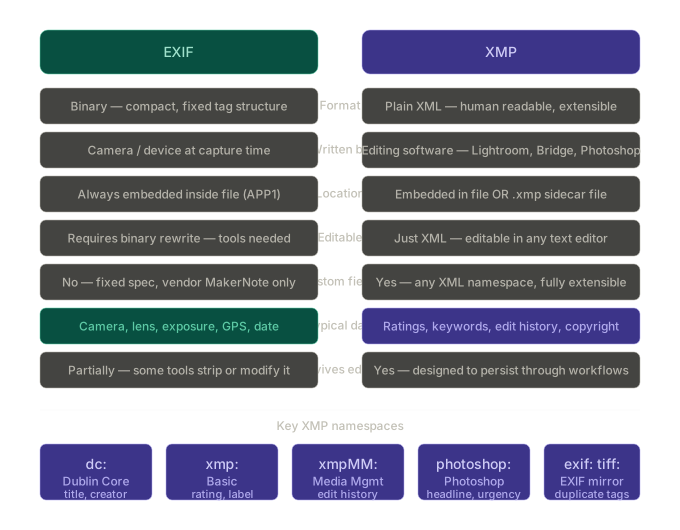
XMP (Extensible Metadata Platform) is Adobe's XML-based format embedded in the JPEG APP1 segment or stored as a sidecar .xmp file alongside RAW images. It records workflow data that EXIF was never designed to hold: star ratings, colour labels, edit history, keywords, and the specific software version that last touched the file.
Since it's plain XML, you can literally read XMP in a text editor. A real-world example from a Lightroom-edited photo:
<x:xmpmeta xmlns:x="adobe:ns:meta/">
  <rdf:RDF xmlns:rdf="http://www.w3.org/1999/02/22-rdf-syntax-ns#">
    <rdf:Description
      xmlns:xmp="http://ns.adobe.com/xap/1.0/"
      xmlns:dc="http://purl.org/dc/elements/1.1/"
      xmlns:xmpMM="http://ns.adobe.com/xap/1.0/mm/"
      xmlns:lr="http://ns.adobe.com/lightroom/1.0/">

      <!-- xmp: Basic namespace -->
      <xmp:Rating>4</xmp:Rating>
      <xmp:Label>Green</xmp:Label>
      <xmp:CreatorTool>Adobe Lightroom Classic 13.0</xmp:CreatorTool>
      <xmp:MetadataDate>2024-07-04T14:32:10-05:00</xmp:MetadataDate>

      <!-- dc: Dublin Core -->
      <dc:creator><rdf:Seq><rdf:li>Jane Smith</rdf:li></rdf:Seq></dc:creator>
      <dc:rights><rdf:Alt><rdf:li>© 2024 Jane Smith</rdf:li></rdf:Alt></dc:rights>
      <dc:subject>
        <rdf:Bag>
          <rdf:li>landscape</rdf:li>
          <rdf:li>sunset</rdf:li>
          <rdf:li>Florida</rdf:li>
        </rdf:Bag>
      </dc:subject>

      <!-- xmpMM: Edit history -->
      <xmpMM:DocumentID>xmp.did:a1b2c3d4-e5f6-7890-abcd-ef1234567890</xmpMM:DocumentID>
      <xmpMM:History>
        <rdf:Seq>
          <rdf:li>Converted from RAW, exported to JPEG</rdf:li>
          <rdf:li>Cropped 16:9, exposure +0.5, clarity +20</rdf:li>
        </rdf:Seq>
      </xmpMM:History>

      <!-- lr: Lightroom-specific -->
      <lr:hierarchicalSubject>
        <rdf:Bag><rdf:li>Location|Florida|Miami</rdf:li></rdf:Bag>
      </lr:hierarchicalSubject>

    </rdf:Description>
  </rdf:RDF>
</x:xmpmeta>
dc: (Dublin Core) is the open standard for descriptive metadata — title, creator, rights, subject keywords. Stock photo sites and CMS platforms read this for cataloguing.
xmp: (Basic) holds workflow data — star rating (1–5), color label, the tool that created the file, and when the metadata itself was last modified.
xmpMM: (Media Management) is the edit history log. Every time Lightroom or Photoshop saves the file, it appends an entry. This gives you a full audit trail of what was done to an image.
photoshop: mirrors some IPTC fields — headline, credit, source, city, country, urgency rating. Widely used in news and stock photo workflows.
exif: and tiff: are XMP duplicates of EXIF tags. Some tools write both; others only write one. When they disagree, EXIF binary values are generally considered more authoritative.
The sidecar file pattern is worth explaining in detail. Lightroom by default never writes metadata back into RAW files — instead it creates a .xmp file sitting next to the image with the same name:
DSC_0042.NEF    ← original RAW, untouched
DSC_0042.xmp    ← all edits, ratings, keywords live here
This is non-destructive editing — the original is never modified. The downside is if you move the image without the sidecar, all your edits disappear.
Reading XMP in code:
// JavaScript — exifr reads XMP automatically
import exifr from 'exifr'
const data = await exifr.parse(file, { xmp: true })
console.log(data.Rating)       // 4
console.log(data.Label)        // "Green"
console.log(data.subject)      // ["landscape", "sunset", "Florida"]
console.log(data.CreatorTool)  // "Adobe Lightroom Classic 13.0"
# Python — using python-xmp-toolkit
from libxmp import XMPFiles, consts
xmpfile = XMPFiles(file_path='photo.jpg', open_forupdate=False)
xmp = xmpfile.get_xmp()
print(xmp.get_property(consts.XMP_NS_XMP, 'Rating'))       # "4"
print(xmp.get_property(consts.XMP_NS_DC, 'creator[1]'))    # "Jane Smith"
One key gotcha — XMP and EXIF can hold duplicate and sometimes conflicting data. DateTimeOriginal exists in both. GPSLatitude exists in both. The general convention: prefer EXIF binary for capture data (dates, GPS, camera settings), prefer XMP for workflow data (ratings, keywords, edit history). Never silently drop one without checking the other.
IPTC Metadata
IPTC (International Press Telecommunications Council) is the journalism and publishing industry's standard for describing the content of an image rather than how it was captured. While EXIF answers "how and when was this shot?", IPTC answers "what is this a photo of, who took it, and what are the usage rights?"
IPTC vs EXIF location fields — this is a common source of confusion. EXIF GPS gives you precise decimal coordinates you can drop on a map. IPTC location fields (City, Country, Sublocation) are free-text, human-curated strings written by a photo editor. They often disagree — a photographer shooting in Miami Beach might GPS-tag the exact street corner, but a photo desk editor writes "Miami" in the IPTC City field. For mapping, always use EXIF GPS. For display and search, IPTC text is more reader-friendly.
The Caption field is the most important one for content-managed systems. Getty, AP, Reuters, and most stock photo platforms populate this as the primary editorial description. If you're building any kind of media library or CMS integration, this is the field editors will rely on most.
Keywords is repeatable — unlike most EXIF fields which hold a single value, IPTC Keywords stores an array. Each keyword is a separate record 2:025 entry. Parsers return this as an array, not a comma-separated string, so handle it accordingly.
Special Instructions is underused but valuable — it's where rights restrictions, usage embargo notes, and editorial warnings live. News organisations use it to flag things like "minor depicted, do not publish without consent" or "embargoed until 00:01 EST". Worth surfacing in any professional media tool.
IPTC vs IPTC-IIM vs IPTC Core — the original binary format stored in images is technically IPTC-IIM (Information Interchange Model), written into the JPEG APP13 segment. "IPTC Core" refers to the newer XMP-based equivalent (photoshop: and Iptc4xmpCore: namespaces). Most modern tools write both simultaneously so older software can still read the binary version. When they conflict, IPTC Core / XMP is considered more authoritative.
The practical set for most use cases — if you're building a photo upload tool, media library, or CMS integration, the fields you actually need to read and write are: Headline, Caption, Keywords, By-line, Credit, Copyright Notice, City, Country Name, and Special Instructions. Everything else is specialist territory for wire services and news organisations.
Reading IPTC in code:
// JavaScript — exifr handles IPTC natively
import exifr from 'exifr'
const data = await exifr.parse(file, { iptc: true })
console.log(data.Headline)         // "Crowds gather at Miami Art Week opening"
console.log(data.Caption)          // full description text
console.log(data.Keywords)         // ["art", "miami", "exhibition", "culture"]
console.log(data.CopyrightNotice)  // "© 2024 Jane Smith / Getty Images"
console.log(data.City)             // "Miami"
# Python — using iptcinfo3
from iptcinfo3 import IPTCInfo
info = IPTCInfo('photo.jpg')
print(info['caption/abstract'])   # full caption
print(info['keywords'])           # list of keywords
print(info['by-line'])            # photographer name
print(info['copyright notice'])   # rights string
print(info['city'])               # "Miami"
ICC Color Profiles
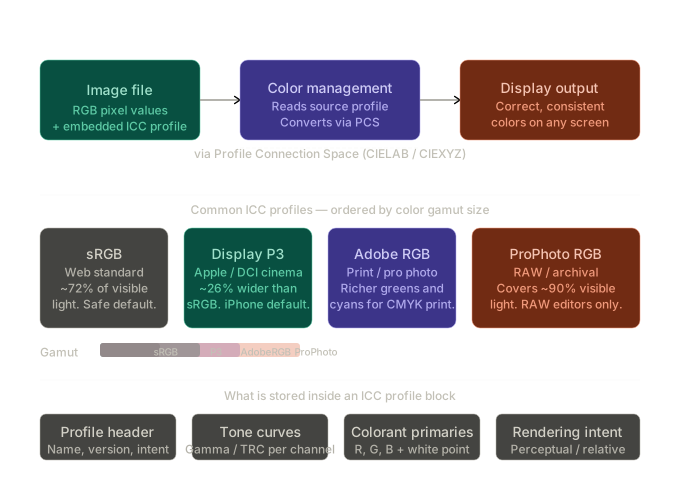
An ICC color profile is a standardised data block embedded in an image file that describes exactly how the colors in that file should be interpreted and displayed. Without one, a color like RGB(255, 128, 0) is ambiguous — it means different shades of orange on different screens. The profile pins it to a specific, absolute color in the real world.
Profile Connection Space (PCS) is the key concept. The ICC system works by converting colors from the source profile → a universal reference space (CIELAB or CIEXYZ, which map to how human eyes actually perceive color) → the destination profile. This two-step translation means any two profiles can talk to each other without needing a direct conversion for every possible pair.
The four profiles you'll encounter in practice:
sRGBis the safe default — virtually every browser, OS, and consumer screen assumes sRGB when no profile is present. If you're building anything web-facing, you want images in sRGB.Display P3is now the default on every iPhone, Mac, and iPad since around 2016–2017. If you display a P3 image in a browser without color management, the wider-gamut colors get clipped to sRGB and look washed out. Modern browsers and the CSScolor()function handle P3, but it's worth flagging in any guide.Adobe RGBis for print workflows — it covers a wider range of greens and cyans that CMYK printers can reproduce but sRGB can't describe. You'll see it in photos from DSLRs set to a professional color mode.ProPhoto RGBis so wide it actually includes colors humans can't see. It's used in RAW editing software (Lightroom, Capture One) to avoid clipping during editing. Never serve a ProPhoto image on the web — it will look completely desaturated on any uncalibrated viewer.
The ICC block embedded in the image includes the profile name and description (e.g. "Display P3"), the RGB primary chromaticities, the white point (usually D65, standard daylight), tone response curves (the gamma curve per channel), and the rendering intent — which controls how out-of-gamut colors are handled when converting between profiles (perceptual shifts everything to fit, relative colorimetric clips).
The key practical warning — if you strip the ICC profile when processing or resaving an image (which many server-side tools do by default), the colors become ambiguous. A viewer will assume sRGB, and a P3 or Adobe RGB image will look subtly wrong — more saturated than intended or slightly off in hue. Always explicitly preserve or convert to sRGB when stripping profiles.
How to extract the ICC profile in code:
// Using exifr (JavaScript)
import exifr from 'exifr'
const { icc } = await exifr.parse(file, { icc: true })
console.log(icc.profileDescription)  // e.g. "Display P3"
console.log(icc.colorSpaceData)      // e.g. "RGB"
console.log(icc.renderingIntent)     // e.g. "Perceptual"
# Using Pillow (Python)
from PIL import Image
img = Image.open('photo.jpg')
icc_raw = img.info.get('icc_profile')

import io
from PIL import ImageCms
profile = ImageCms.ImageCmsProfile(io.BytesIO(icc_raw))
print(ImageCms.getProfileDescription(profile))  # "Display P3"
Embedded Thumbnails
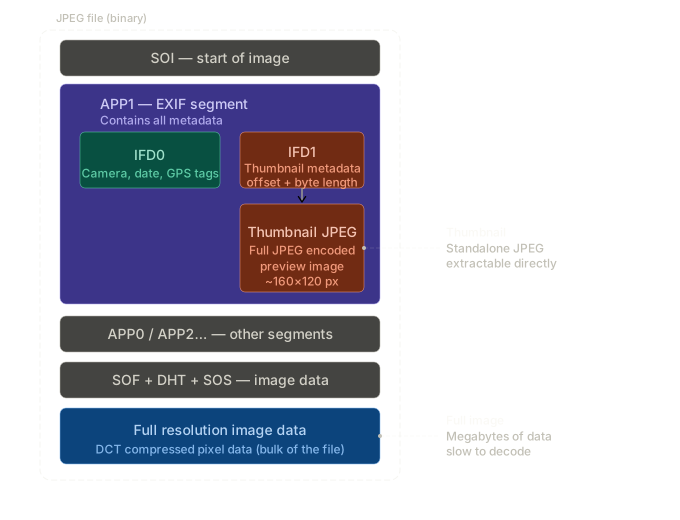
Almost every JPEG shot on a digital camera or smartphone has a small preview JPEG baked right inside the file. The thumbnail is a complete, self-contained JPEG image stored inside the APP1 (EXIF) segment of the outer JPEG file. IFD1 holds two key pointers — ThumbnailOffset (where in the file the thumbnail bytes begin) and ThumbnailLength (how many bytes it spans). To extract it you just slice those bytes out and you have a valid JPEG you can decode or display independently.
Typical specs of the embedded thumbnail:
| Property | Typical value |
|---|---|
| Dimensions | 160×120 px (4:3) or 160×90 px (16:9) |
| Format | JPEG (always, regardless of outer format) |
| File size | 5–25 KB |
| Color space | sRGB |
| Orientation | May need the same Orientation tag fix as the main image |
Why it matters in practice:
- Fast previews — load the thumbnail instantly instead of decoding a 12 MB full-res image just to show a grid view
- Server-side pipelines — when users upload photos, you can extract the thumbnail to show a preview before the full upload finishes
- Offline / low-bandwidth situations — serve the thumbnail for list views, only load full-res on demand
The orientation trap — the thumbnail is sometimes rendered at a different rotation than the main image, and its own Orientation tag can disagree with IFD0's. Always read and apply the thumbnail's orientation separately from the main image's orientation.
One gotcha — some images have a thumbnail that is outdated relative to the main image. If someone crops or heavily edits a JPEG in software that only updates the main image data but not the embedded thumbnail, the thumbnail will still show the original unedited version. This can actually be useful for forensics, but surprising for end users.
Extracting it in JavaScript using exifr:
import exifr from 'exifr'

const thumbnail = await exifr.thumbnail(file)  // returns a Uint8Array
const blob = new Blob([thumbnail], { type: 'image/jpeg' })
const url = URL.createObjectURL(blob)
img.src = url
Extracting it in Python using Pillow:
from PIL import Image
import io

img = Image.open('photo.jpg')
thumb_data = img.applist  # raw APP segments

# Or with exifread:
import exifread
with open('photo.jpg', 'rb') as f:
    tags = exifread.process_file(f)
    thumb = tags.get('JPEGThumbnail')
    if thumb:
        with open('thumb.jpg', 'wb') as out:
            out.write(thumb.values)
File Format & Metadata Support
JPEG and TIFF are the undisputed winners for metadata richness. TIFF technically edges ahead because it's lossless and natively structured around IFD (Image File Directory) — the same binary structure EXIF was derived from. But JPEG is the practical winner because universal tooling support means nothing strips or corrupts its metadata unexpectedly.
Three tiers worth knowing:
- The full-metadata tier — JPEG, TIFF, HEIC, and DNG — supports every metadata standard simultaneously, embedded in a single file. If someone asks what format to use for archiving photos with complete metadata intact, these are the answer.
- The web format tier — PNG, WebP, and AVIF — supports color profiles and XMP, but IPTC is either unsupported or ignored, and EXIF support is inconsistent across tools. PNG is the biggest gotcha here: the spec technically allows EXIF in a chunk, but server-side image processors (ImageMagick, Sharp, Squoosh) routinely strip it on export. Never rely on PNG preserving EXIF through a processing pipeline.
- GIF has no metadata support whatsoever — not even a color profile field.
The RAW caveat — vendor RAW formats (Canon's CR3, Nikon's NEF, Sony's ARW) embed EXIF deeply and preserve it reliably, but XMP edits from Lightroom live in a sidecar .xmp file rather than inside the RAW. DNG, Adobe's open RAW format, solves this by embedding XMP directly — which is why many archivists convert proprietary RAW files to DNG.
The pipeline stripping problem is probably the most practical thing to understand. Every time an image passes through a processing step, metadata is at risk:
Original JPEG (full metadata)
→ Uploaded to server
→ Resized with Sharp / ImageMagick   ← IPTC often stripped here
→ Compressed for web delivery        ← ICC profile sometimes stripped
→ Served to browser                  ← user gets metadata-free image
To preserve metadata through a Sharp pipeline in Node.js:
import sharp from 'sharp'

await sharp('input.jpg')
  .resize(800)
  .withMetadata()  // ← this single option preserves all metadata
  .toFile('output.jpg')
Without .withMetadata(), Sharp strips everything by default. ImageMagick requires -strip to remove metadata and omitting it keeps it — the opposite default, which trips people up when switching tools.
HEIC deserves a special mention since it's now the default on every iPhone. It carries the full metadata suite and can store multiple images in one file (Live Photos, burst sequences), each with their own EXIF block. The catch is that browser support is still limited, so most web pipelines convert HEIC to JPEG on upload, and that conversion needs to explicitly carry metadata across.
Reference Data
The tables below provide a complete field-level reference for each metadata standard covered in this article.
| Tag ID | Field name | Description | Example value | Availability |
|---|---|---|---|---|
| Position | ||||
| 0x0002 | GPSLatitude | Latitude in DMS (degrees, minutes, seconds) | 25/1, 46/1, 3456/100 | Core |
| 0x0001 | GPSLatitudeRef | North or South hemisphere | N | Core |
| 0x0004 | GPSLongitude | Longitude in DMS | 80/1, 13/1, 2178/100 | Core |
| 0x0003 | GPSLongitudeRef | East or West hemisphere | W | Core |
| 0x0006 | GPSAltitude | Altitude in meters above/below sea level | 15/1 (15m) | Common |
| 0x0005 | GPSAltitudeRef | 0 = above sea level, 1 = below | 0 | Common |
| Accuracy | ||||
| 0x0007 | GPSTimeStamp | UTC time when GPS fix was taken | 14/1, 32/1, 5500/100 | Common |
| 0x001D | GPSDateStamp | UTC date of the GPS fix | 2024:03:15 | Common |
| 0x0008 | GPSSatellites | Number of satellites used for the fix | 08 | Rare |
| 0x0009 | GPSStatus | A = measurement active, V = void/invalid | A | Rare |
| 0x000A | GPSMeasureMode | 2 = 2D fix, 3 = 3D fix (with altitude) | 3 | Rare |
| 0x000B | GPSDOP | Dilution of precision — lower = more accurate | 12/5 (2.4) | Rare |
| Movement | ||||
| 0x000D | GPSSpeed | Speed of the device when photo was taken | 0/1 | Rare |
| 0x000C | GPSSpeedRef | K = km/h, M = mph, N = knots | K | Rare |
| 0x000F | GPSTrack | Direction of movement in degrees (0–360) | 18750/100 (187.5°) | Rare |
| 0x000E | GPSTrackRef | T = true north, M = magnetic north | T | Rare |
| Camera orientation | ||||
| 0x0011 | GPSImgDirection | Direction the camera was pointing (0–360°) | 27150/100 (271.5°) | Common |
| 0x0010 | GPSImgDirectionRef | T = true north, M = magnetic north | T | Common |
| 0x0013 | GPSDestBearing | Bearing to a destination point | 90/1 | Rare |
| Other | ||||
| 0x001B | GPSProcessingMethod | Name of GPS fix method (GPS, CELLID, WLAN) | GPS | Rare |
| 0x001C | GPSAreaInformation | Name of the geographic area | Miami Beach | Rare |
| 0x0000 | GPSVersionID | Version of the GPS info standard used | 2.3.0.0 | Rare |
| Tag | Field name | Description | Example value | Availability |
|---|---|---|---|---|
| Camera identity | ||||
| 0x010F IFD0 | Make | Camera manufacturer | Apple | Core |
| 0x0110 IFD0 | Model | Camera or phone model | iPhone 15 Pro | Core |
| 0x0131 IFD0 | Software | Firmware version or editing app | 17.4.1 | Core |
| 0x013B IFD0 | Artist | Photographer name set in camera | Jane Smith | Rare |
| 0x8298 IFD0 | Copyright | Copyright string set in-camera or by editor | © 2024 Jane Smith | Rare |
| 0x9000 EXIF | ExifVersion | Version of the EXIF standard used | 0232 | Core |
| Lens | ||||
| 0xA434 EXIF | LensModel | Lens name/model string | iPhone 15 Pro back triple camera 6.765mm f/1.78 | Common |
| 0xA433 EXIF | LensMake | Lens manufacturer | Apple | Common |
| 0xA432 EXIF | LensSpecification | Min/max focal length and min/max aperture of lens | 1/1, 6/1, 14/10, 28/10 | Common |
| 0x9202 EXIF | ApertureValue | Lens aperture in APEX units (log scale) | 169984/65536 | Core |
| 0x829D EXIF | FNumber | Aperture f-number — the human-readable version | 9/5 (f/1.8) | Core |
| 0x920A EXIF | FocalLength | Focal length in mm | 677/100 (6.77mm) | Core |
| 0xA405 EXIF | FocalLengthIn35mmFilm | Equivalent focal length on a full-frame sensor | 24 | Common |
| Exposure | ||||
| 0x829A EXIF | ExposureTime | Shutter speed as a fraction of a second | 1/1000 | Core |
| 0x9201 EXIF | ShutterSpeedValue | Shutter speed in APEX units (log scale) | 653935/65536 | Core |
| 0x8827 EXIF | ISOSpeedRatings | ISO sensitivity — higher = more noise | 400 | Core |
| 0x9204 EXIF | ExposureBiasValue | EV compensation applied by photographer | 0/1 (no compensation) | Core |
| 0x8822 EXIF | ExposureProgram | 0=manual, 1=program, 2=auto, 3=aperture, 4=shutter | 2 | Core |
| 0xA402 EXIF | ExposureMode | 0=auto, 1=manual, 2=auto bracket | 0 | Common |
| 0x9203 EXIF | BrightnessValue | Luminance of the scene in APEX units | 235528/65536 | Common |
| 0x9205 EXIF | MaxApertureValue | Smallest f-number the lens can achieve | 169984/65536 | Common |
| Metering & focus | ||||
| 0x9207 EXIF | MeteringMode | 1=average, 2=center-weighted, 3=spot, 5=multi-zone | 5 | Core |
| 0xA210 EXIF | FocalPlaneResolutionUnit | Unit for focal plane X/Y resolution | 2 (inch) | Rare |
| 0xA20E EXIF | FocalPlaneXResolution | Horizontal pixel density on sensor | 3264000/881 | Rare |
| 0xA20F EXIF | FocalPlaneYResolution | Vertical pixel density on sensor | 3264000/881 | Rare |
| 0x9206 EXIF | SubjectDistance | Distance to the focus subject in meters | 3/1 (3m) | Rare |
| 0xA214 EXIF | SubjectLocation | X, Y pixel coords of main subject in frame | 2016, 1512 | Rare |
| 0xA406 EXIF | SceneCaptureType | 0=standard, 1=landscape, 2=portrait, 3=night | 0 | Common |
| Flash | ||||
| 0x9209 EXIF | Flash | Bitmask: bit 0=fired, bits 3–4=mode, bit 5=red-eye | 24 (auto, did not fire) | Core |
| 0xA20B EXIF | FlashEnergy | Strobe energy in BCPS when flash fired | 100/1 | Rare |
| White balance & color rendering | ||||
| 0xA403 EXIF | WhiteBalance | 0=auto, 1=manual | 0 | Core |
| 0x9208 EXIF | LightSource | 0=auto, 1=daylight, 3=tungsten, 4=flash… | 0 | Common |
| 0xA408 EXIF | Contrast | 0=normal, 1=low, 2=high | 0 | Common |
| 0xA409 EXIF | Saturation | 0=normal, 1=low, 2=high | 0 | Common |
| 0xA40A EXIF | Sharpness | 0=normal, 1=soft, 2=hard | 0 | Common |
| 0xA407 EXIF | GainControl | 0=none, 1=low gain up, 2=high gain up, 3=low gain down, 4=high gain down | 0 | Rare |
| Sensor & image source | ||||
| 0xA217 EXIF | SensingMethod | 1=monocolor, 2=one-chip color, 4=3-chip, 5=sequential | 2 | Rare |
| 0xA300 EXIF | FileSource | 3=digital still camera (almost always 3) | 3 | Rare |
| 0xA301 EXIF | SceneType | 1=directly photographed (not composite or scan) | 1 | Rare |
| 0xA401 EXIF | CustomRendered | 0=normal, 1=custom (HDR, portrait mode, etc.) | 1 | Common |
| 0xA404 EXIF | DigitalZoomRatio | Zoom factor applied — 1=no zoom, 0=not used | 1/1 | Common |
| 0xA40C EXIF | SubjectDistanceRange | 0=unknown, 1=macro, 2=close, 3=distant | 2 | Rare |
| 0x9214 EXIF | SubjectArea | Rectangle or circle describing the main subject area | 2015, 1511, 2217, 1330 | Rare |
| Maker note (vendor-specific) | ||||
| 0x927C EXIF | MakerNote | Private block of vendor data — Apple, Canon, Nikon each have proprietary fields (burst count, HDR settings, face data, lens corrections…) | [binary blob] | Common |
| 0x9286 EXIF | UserComment | Free-text comment field written by camera or user | Shot on iPhone | Rare |
| Tag / source | Field name | Description | Example value | Availability |
|---|---|---|---|---|
| Dimensions & resolution | ||||
| 0xA002 EXIF | PixelXDimension | Full image width in pixels | 4032 | Core |
| 0xA003 EXIF | PixelYDimension | Full image height in pixels | 3024 | Core |
| 0x011A IFD0 | XResolution | Horizontal pixels per resolution unit | 72/1 | Core |
| 0x011B IFD0 | YResolution | Vertical pixels per resolution unit | 72/1 | Core |
| 0x0128 IFD0 | ResolutionUnit | 1 = no unit, 2 = inch (DPI), 3 = centimetre | 2 | Core |
| Color & bit depth | ||||
| 0x0102 IFD0 | BitsPerSample | Bit depth per channel (e.g. 8-bit = 256 tones) | 8, 8, 8 | Core |
| 0x0106 IFD0 | PhotometricInterpretation | Color model: 2=RGB, 6=YCbCr, 1=greyscale | 6 | Core |
| 0xA001 EXIF | ColorSpace | 1 = sRGB, 0xFFFF = uncalibrated | 1 | Core |
| ICC profile | ICC ProfileDescription | Full color profile name embedded in file | Display P3 | Common |
| 0x0115 IFD0 | SamplesPerPixel | Number of channels (3=RGB, 4=CMYK/RGBA) | 3 | Common |
| Compression & encoding | ||||
| 0x0103 IFD0 | Compression | 1=none, 6=JPEG, 7=JPEG2000, 34933=HEVC | 6 | Core |
| 0x0112 IFD0 | Orientation | Rotation/flip flag — 1=normal, 3=180°, 6=90°CW, 8=90°CCW | 1 | Core |
| 0x0116 IFD0 | RowsPerStrip | How many rows per data strip (TIFF layout) | 480 | Rare |
| 0x0117 IFD0 | StripByteCounts | Byte count for each strip of image data | 921600 | Rare |
| Tone & rendering | ||||
| 0x013E IFD0 | WhitePoint | Chromaticity of the white point | 3127/10000, 3290/10000 | Rare |
| 0x013F IFD0 | PrimaryChromaticities | Chromaticities of R, G, B primaries | 640/1000, 330/1000... | Rare |
| 0x0213 IFD0 | YCbCrPositioning | 1=centered, 2=co-sited (affects JPEG chroma) | 1 | Common |
| 0x013B IFD0 | Predictor | Pre-processing applied before compression | 1 | Rare |
| Embedded thumbnail | ||||
| IFD1 / EXIF | ThumbnailOffset | Byte offset to embedded thumbnail data | 1234 | Common |
| IFD1 / EXIF | ThumbnailLength | Byte length of embedded thumbnail | 8192 | Common |
| IFD1 | ThumbnailWidth / Height | Pixel dimensions of the embedded thumbnail | 160 × 120 | Common |
| File-level (not EXIF — read from the file itself) | ||||
| File header | File format | Detected from magic bytes, not filename extension | JPEG / PNG / HEIC | Core |
| File header | File size | Total size of the image file in bytes | 3.2 MB | Core |
| EXIF 0x0131 | Software | App or firmware that created/edited the file | Adobe Lightroom 7.0 | Common |
| Tag | Field name | Description | Example value | Availability | Reliability |
|---|---|---|---|---|---|
| The three core timestamps | |||||
| 0x9003 | DateTimeOriginal | When the shutter was pressed — the most trusted timestamp | 2024:07:04 14:32:10 | Core | Highest |
| 0x9004 | DateTimeDigitized | When image was digitized — same as Original for digital cameras, differs for scanned film | 2024:07:04 14:32:10 | Core | High |
| 0x0132 | DateTime | Last modified time — updates when file is edited, so unreliable for "when taken" | 2024:09:12 08:15:00 | Core | Medium |
| Sub-second precision | |||||
| 0x9291 | SubSecTimeOriginal | Fractional seconds for DateTimeOriginal | 456 | Common | High |
| 0x9292 | SubSecTimeDigitized | Fractional seconds for DateTimeDigitized | 456 | Common | High |
| 0x9290 | SubSecTime | Fractional seconds for DateTime (last modified) | 000 | Rare | Medium |
| Timezone offsets (EXIF 2.31+, 2016) | |||||
| 0x9011 | OffsetTimeOriginal | UTC offset when shutter was pressed | -05:00 | Common | High |
| 0x9012 | OffsetTimeDigitized | UTC offset when image was digitized | -05:00 | Common | High |
| 0x9010 | OffsetTime | UTC offset for the last-modified DateTime | +00:00 | Rare | Medium |
| GPS time (always UTC) | |||||
| 0x0007 GPS | GPSTimeStamp | UTC time of the GPS fix — most precise, hardware-synced | 19/1, 32/1, 1050/100 | Common | Highest |
| 0x001D GPS | GPSDateStamp | UTC date of the GPS fix | 2024:07:04 | Common | Highest |
| File-system level (not EXIF — often unreliable) | |||||
| OS / filesystem | File created | Set by OS when file is written — resets on copy | 2024:09:01 10:00:00 | Core | Low |
| OS / filesystem | File modified | Updates on any file write — almost meaningless for "when taken" | 2024:09:12 08:15:00 | Core | Low |
| Record:Dataset | Field name | Description | Example value | Availability |
|---|---|---|---|---|
| Content description | ||||
| 2:105 | Headline | Short publishable summary — appears as the image title in most CMS platforms | Crowds gather at Miami Art Week opening | Core |
| 2:120 | Caption / Abstract | Full description of the image content — the main editorial text | Visitors browse exhibits at the opening night of Miami Art Week, Thursday December 5, 2024. | Core |
| 2:025 | Keywords | Repeatable tag — one keyword per entry, used for search and categorisation | art, miami, exhibition, culture | Core |
| 2:015 | Category | 3-letter subject code from the IPTC category taxonomy (legacy) | ACE (Arts, Culture, Entertainment) | Rare |
| 2:020 | Supplemental Categories | Additional subject categories beyond the primary Category | Photography, Visual Arts | Rare |
| 2:022 | Subject Reference | Structured IPTC subject code — more precise than Category | 01016000 (Arts/Fine Art) | Common |
| Creator & credit | ||||
| 2:080 | By-line | Photographer's name — the primary author credit | Jane Smith | Core |
| 2:085 | By-line Title | Photographer's job title or role | Staff Photographer | Common |
| 2:110 | Credit | Credit line as it should appear in publication — often agency/org name | Getty Images | Core |
| 2:115 | Source | Original source of the image — wire service, agency, or publication | Associated Press | Core |
| 2:116 | Copyright Notice | Full copyright statement — the legally significant rights line | © 2024 Jane Smith / Getty Images | Core |
| 2:118 | Contact | Contact info for rights inquiries — email, phone, or URL | photo@gettyimages.com | Common |
| Location (text-based — not coordinates) | ||||
| 2:092 | Sublocation | Most specific location — building, venue, or neighbourhood name | Pérez Art Museum Miami | Common |
| 2:090 | City | City where the image was taken | Miami | Common |
| 2:095 | Province / State | State, province, or region name | Florida | Common |
| 2:100 | Country Code | ISO 3166-1 alpha-3 country code | USA | Common |
| 2:101 | Country Name | Full country name as text | United States | Common |
| Date & timing | ||||
| 2:055 | Date Created | Date the image content was created — editorial date, not always capture date | 20241205 | Core |
| 2:060 | Time Created | Time the image content was created, with UTC offset | 193045-0500 | Common |
| 2:062 | Digital Creation Date | Date the digital file was created — may differ from editorial date | 20241205 | Rare |
| 2:070 | Release Date | Earliest date the image may be published | 20241206 | Rare |
| 2:037 | Expiration Date | Latest date the image may be used — embargo or rights expiry | 20251205 | Rare |
| Transmission & editorial | ||||
| 2:010 | Urgency | Editorial priority: 1=most urgent, 8=least urgent, 9=user-defined | 3 | Rare |
| 2:040 | Special Instructions | Usage restrictions or editorial notes — e.g. "no archive use", "faces pixelated" | For online use only. No print syndication. | Common |
| 2:103 | Object Name | Unique identifier assigned by the originating organisation | MIA-ART-2024-0042 | Common |
| 2:122 | Caption Writer | Name of person who wrote the caption text | Tom Editor | Rare |
| Format | EXIF | IPTC | XMP | ICC profile | Thumbnail | Rating | Best for |
|---|---|---|---|---|---|---|---|
| Recommended formats | |||||||
| JPEG / JPG | ✓ | ✓ | ✓ | ✓ | ✓ | ✓ | Best overall Universal support, all metadata types |
| TIFF | ✓ | ✓ | ✓ | ✓ | ✓ | ✓ | Best overall Lossless + richest metadata of any format |
| HEIC / HEIF | ✓ | ✓ | ✓ | ✓ | ✓ | ✓ | Modern iPhone default since iOS 11, better compression |
| DNG | ✓ | ✓ | ✓ | ✓ | ✓ | ✓ | Archival RAW Adobe's open RAW standard, XMP embedded natively |
| RAW (CR3, NEF, ARW…) | ✓ | partial | sidecar | ✓ | ✓ | sidecar | Pro capture XMP usually lives in .xmp sidecar, not embedded |
| Common web formats | |||||||
| PNG | partial | ✗ | ✓ | ✓ | ✗ | ✗ | Limited EXIF in tEXt/eXIf chunk only — many tools strip it |
| WebP | ✓ | ✗ | ✓ | ✓ | ✗ | ✗ | Limited EXIF + XMP supported, IPTC not in spec |
| AVIF | ✓ | ✗ | ✓ | ✓ | ✗ | ✗ | Limited Newer format, tooling still maturing |
| GIF | ✗ | ✗ | ✗ | ✗ | ✗ | ✗ | None No metadata support at all |
| SVG | ✗ | ✗ | ✓ | ✗ | ✗ | ✗ | XMP only XML-based, XMP embeds directly as RDF block |